Rouge Dynasty App Download for Android: APK Install and Update Guide
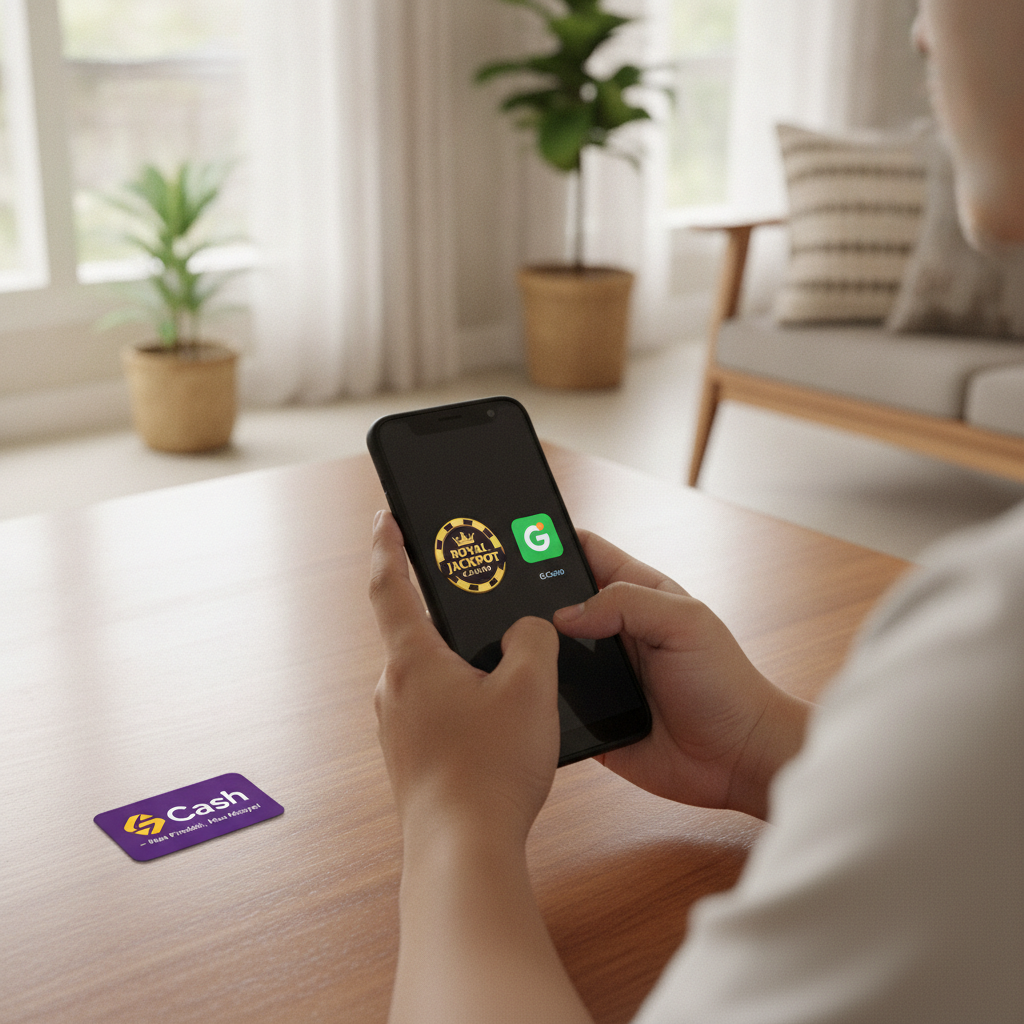
Most Rouge Dynasty players in the Philippines use Android phones to bet on PBA games, spin slots, and play live dealer tables. The platform does not distribute its app through Google Play, so you will need to download the Rouge Dynasty APK file directly and install it manually. This guide walks through every step—from finding the official download link to troubleshooting common installation errors and keeping the app updated.
This guide is for players aged 21 and over. Gamble responsibly and within your means.
Where to Download the Official Rouge Dynasty Android APK File
Rouge Dynasty distributes its Android app as an APK file hosted on the operator's own servers. You will not find it in the Google Play Store because Google does not allow real-money casino apps for the Philippines in its store.
To download the official Rouge Dynasty APK:
- Open your mobile browser (Chrome, Firefox, or any default Android browser).
- Visit the Rouge Dynasty website by typing the official domain into the address bar. Do not use search-engine links or third-party download sites; go directly to the operator's page to avoid fake or modified APK files.
- Look for a "Download App" button, banner, or menu link. This is usually displayed prominently on the homepage or in the top navigation.
- Tap the download button. Your browser will prompt you to save the APK file, which is typically 60–100 MB in size.
- The file will download to your phone's Downloads folder.
Some players receive a direct APK download link via SMS or email after logging into their Rouge Dynasty account on the mobile web version. If you already have an account, check your messages or the promotions inbox.
Always verify the source. The safest route is the official Rouge Dynasty website. Avoid APK mirror sites, Telegram channels, or Facebook groups offering "modded" or "cracked" versions—these files may contain malware or steal your login credentials.
Step-by-Step Install Instructions and Required Phone Settings
Once the APK file is on your phone, you need to adjust one Android security setting before installation will proceed.
Allow Installation from Unknown Sources
By default, Android blocks apps that do not come from Google Play. You must grant permission to your browser or file manager to install APK files:
- Open Settings on your Android phone.
- Navigate to Security or Privacy (the exact menu name varies by brand—Samsung, Xiaomi, Oppo, and Realme phones may label it differently).
- Find Install unknown apps or Unknown sources.
- Tap the browser you used to download the APK (for example, Chrome).
- Toggle on Allow from this source.
On older Android versions (before Android 8), you may see a single "Unknown sources" checkbox under Security. Simply check that box.
Install the Rouge Dynasty APK
- Open your Downloads folder using the file manager app (Files, My Files, or Downloads).
- Locate the Rouge Dynasty APK file. It will be named something like
RougeDynasty.apkorRougeDynasty_v2.1.apk. - Tap the file. A prompt will appear asking if you want to install this application.
- Review the list of permissions (storage, network, location). These are standard for a casino app that needs to save session data and verify your location.
- Tap Install.
- Wait 10–30 seconds. When installation finishes, tap Open to launch the app, or tap Done and find the Rouge Dynasty icon on your home screen or app drawer.
First Launch and Login
When you open the app for the first time, it will load the login screen. Enter the username and password you use on the Rouge Dynasty website. If you play via GCash login or another social sign-in method on the browser version, use the same credentials here.
The app may ask for additional permissions (notifications, location). Granting notifications lets you receive alerts about deposit confirmations and withdrawal updates. Location permission helps the app confirm you are within the Philippines, which is required under the operator's rules.
How to Update the App When a New Version Is Released
Rouge Dynasty pushes app updates every few weeks to fix bugs, improve performance, and add new game titles. Because the app is not on Google Play, updates do not happen automatically. You must download and install each new version manually.
Check for Updates
- In-app prompt: When you open an outdated version, a pop-up may appear saying "New version available" with a direct download link. Tap the link to download the latest APK.
- Website banner: Log into the Rouge Dynasty mobile site. If your app is out of date, a banner may display at the top with an "Update App" button.
- Manual check: Visit the official Rouge Dynasty website and tap the "Download App" link. If the file size or version number is different from what you have, it is a newer release.
Install the Update
- Download the new APK file using the same steps as the original installation.
- Tap the APK file in your Downloads folder.
- Android will recognize that an older version is already installed and display an "Update" button instead of "Install."
- Tap Update (or Install if the button label is the same). The system will replace the old app with the new one.
- Your login session, saved favorites, and bet history are preserved during the update. You do not need to log in again unless you manually cleared app data.
Do not uninstall the old version before installing the update. If you uninstall first, you may lose cached login tokens and need to verify your phone number again.
Fixing 'Installation Blocked' or 'App Not Installed' Errors
Even after enabling unknown sources, some players see error messages during installation. Here are the most common issues and how to resolve them.
"App Not Installed" or "Installation Failed"
Cause: Corrupted or incomplete APK download.
Fix:
- Delete the APK file from your Downloads folder.
- Clear your browser cache: open browser settings, find "Clear browsing data," and select "Cached images and files."
- Download the APK again from the official Rouge Dynasty site.
- Try installing the fresh file.
Cause: Insufficient storage space.
Fix: Free up at least 200 MB on your phone. Delete unused apps, clear photo and video caches, or move files to an SD card or cloud storage. Then retry the installation.
"Installation Blocked" or "For Security, Your Phone Is Set to Block..."
Cause: You have not enabled installation from unknown sources for the correct app.
Fix:
- Go back to Settings > Security > Install unknown apps.
- Check that the app you used to download the APK (Chrome, Firefox, Files, etc.) has the toggle turned on.
- Restart the installation.
"Package Conflicts with an Existing Package"
Cause: A previous version is installed but the new APK has a different signing certificate (this is rare but can happen if you previously installed a fake or modified version).
Fix:
- Uninstall the existing Rouge Dynasty app.
- Restart your phone.
- Download and install the APK from the official Rouge Dynasty website.
You will need to log in again and may be asked to complete SMS or email verification.
"Parse Error: There Was a Problem Parsing the Package"
Cause: The APK file is incompatible with your Android version, or the file is damaged.
Fix:
- Check your Android version: go to Settings > About phone > Android version. Rouge Dynasty typically requires Android 5.0 or newer. If your phone runs Android 4.x, the app may not work.
- Re-download the APK. A parse error often means the file did not finish downloading or was modified during transfer.
- Disable any VPN or ad-blocker while downloading and installing. Some security apps interfere with APK parsing.
Play Protect Warning
When you install an APK outside Google Play, you may see a "Google Play Protect" warning screen stating the app is unverified. This is normal for all sideloaded apps.
Tap More details and then Install anyway. Play Protect cannot verify apps distributed outside its store, but as long as you downloaded from the official Rouge Dynasty site, the APK is legitimate.
Practical Tips for a Smooth Experience
- Enable notifications: This ensures you receive alerts when a deposit lands, a withdrawal is processed, or a free-spin promo activates. Notifications also remind you if the app is idle for too long and logs you out for security.
- Keep the app updated: New versions often include fixes for login loops, cashout delays, and live-dealer stream quality. Check for updates every two to three weeks.
- Bookmark the official site: Save the Rouge Dynasty homepage in your browser favorites so you always have a trusted source for the latest APK.
- Do not modify APK files: Using third-party tools to "unlock" features or "remove" wagering requirements will get your account flagged or banned. Play the official version only.
Payment and Withdrawal on the App
Once the Rouge Dynasty app is installed and updated, you can deposit via GCash, Maya, InstaPay, or PESONet directly from the app's cashier screen. Withdrawal steps are identical to the mobile web version: navigate to the cashier, select your e-wallet or bank account, enter the amount, and confirm. Processing times and limits are the same whether you use the app or the browser.
For detailed walkthroughs of GCash deposits, Maya cashouts, and troubleshooting pending withdrawals, refer to the dedicated payment guides on this site.
Remember: Rouge Dynasty is intended for players aged 21 and over. Set deposit limits, take breaks, and seek help if gambling stops being fun. Resources are available through the Philippine National Council on Problem Gambling and the operator's responsible-gambling page.
This guide reflects the app install process as of the current Rouge Dynasty Android release. Steps and screens may change with future updates. Always follow the on-screen instructions provided by the official app and website.